Forgot Your BellSouth Mail Login or Password?
Internet Explorer Password Recovery Tool for Windows easily recovers all lost or forgotten logins and passwords for your account.
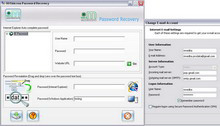
The tool solves all sign in problems:
$38.00

Order the Password Recovery Tool
You will be able to download the product immediately after ordering!
Learn more about the password recovery tool
BellSouth Mail: Login Automatically
Login to BellSouth mail automatically with a Handy Password manager.
To login to BellSouth mail with a single click, please do the following:
- Download password manager;
- Turn on Handy Password toolbar in Internet Explorer/Firefox;
- Go to the webmail.bellsouth.net;
- Type in your BellSouth username and password;
- Click the "Save" button on the Handy Password toolbar;
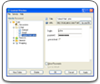
- Check the "Show on Toolbar" checkbox in the opened "Save card" dialog;
- Press "Enter".
From now, to login to BellSouth mail automatically, just click on the "BellSouth - Web E-mail" button on the Handy Password toolbar.
Handy Password is also called a bookmark manager, because "BellSouth - Web E-mail" button appears on Firefox or Internet Explorer toolbar like bookmark and contains not only filled form fields, but also a site url, so you can at once enter a site and login to it.
Read about automatic login, password keeper and other features of Handy Password.
Scroll down to learn how to login to BellSouth Home Page automatically.
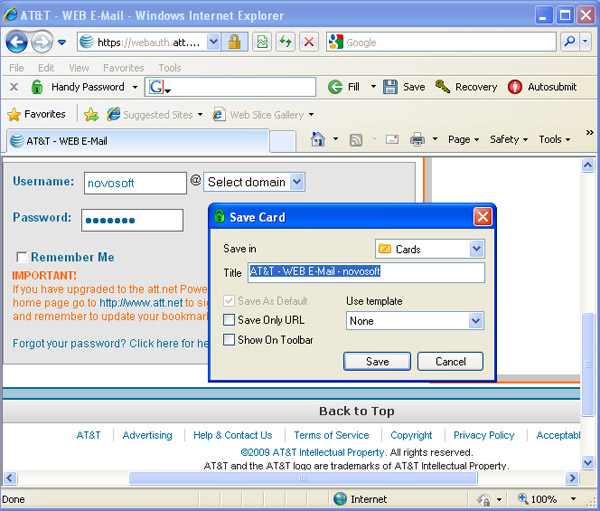
To login to BellSouth Home Page with a single click, please do the following:
- Download and install Handy Password;
- Turn on Handy Password toolbar in Internet Explorer/Firefox;
- Go to the BellSouth Home Page login page;
- Type in your BellSouth Home Page username and password;
- Click the "Save" button on the Handy Password toolbar;
- Check the "Show on Toolbar" checkbox in the opened "Save card" dialog;
- Press "Enter".
From now, to login to your BellSouth Home Page automatically, just click on the "BellSouth - HOME PAGE LOGIN" button on the Handy Password toolbar.
See also:
ADP myaccount screenshot
Back to Screenshots List
 |  |  |