Opening database
You can open the Handy Password database in five different ways.
1. Launch Handy Password application and in the File drop-down menu, select the Open Database item.
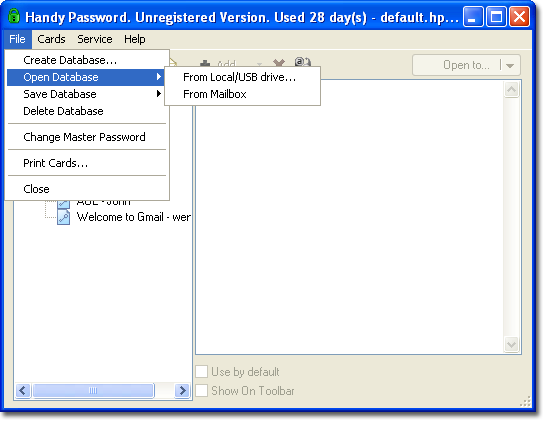
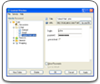
If your database is stored in your local computer, click From Local Computer…
If your database is stored in your mail server, click From Mailbox. The database will be downloaded from your mailbox to the local computer.
2. Another way to open the database is to right-click the tray icon of Handy Password.
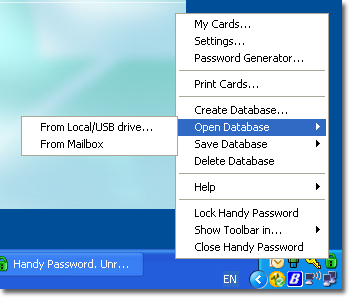
In the pop-up menu that appears, select the Open Database item and choose From local Computer… or From Mailbox depending on where your database is stored.
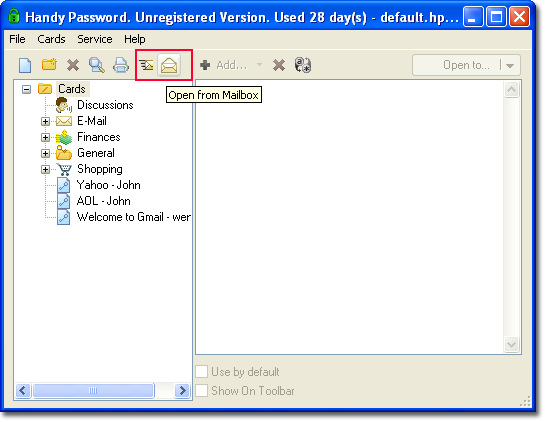
3. You can also download your database from the mail server by clicking the Open from mailbox icon on the application toolbar.
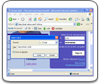
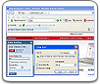
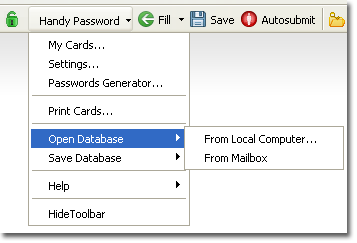
4. Still another way is to open the database from the Internet browser. On the browser toolbar, click the Handy Password tab. In the drop-down list, select Open Database and specify the location where your database is stored i.e. local computer or your mailbox.
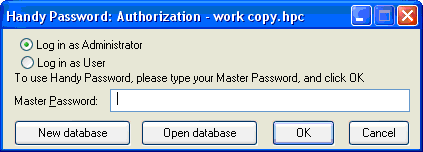
5. Still another way to open a database is to launch the program by clicking the tray icon or the desktop shortcut or the corresponding Start menu item.
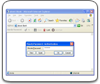
The Handy Password authorization dialog will appear. If you are a database administrator, select the corresponding option and enter the administrator password. If you have a user account, check the radio-button Log in as User and type in your user password.
 |  |  |