System Tray Agent
 For quick access to the program, Handy Password has a shortcut in a system tray. The shortcut appears as a Handy Password icon that looks like this
  .
.
If you double-click the icon, Handy Password application will be launched.
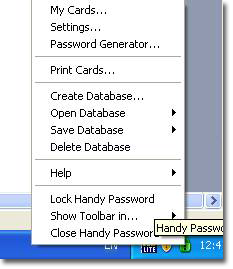
If you right-click the icon, a pop-up list will appear.
Menu contents:
- My Cards... - opens the Card Explorer;
- Settings... - opens the Settings window;
- Password Generator... - opens the Password generator;
- Print Cards... - opens the dialog that allow to print cards with your personal information;
- Create database... – launches the Create new database wizard. For more details, refer to Creating a database
- Open database – opens the database. For more information on how to open the database see Opening database
- Save database – allows you to save your database locally or on the email server. For more details on how to save database, see Saving database
- Delete database – deletes database
- Help – replicates the Help menu of the Top Menu
- Lock Handy Password – locks Handy Password browser toolbar
- Show toolbar in – select in which browser Handy Password toolbar should appear
- Close Handy Password – exit the application
 |  |  |